Google has updated the voice search interface on Android

 By ForGeeks
Google has started rolling out a new voice search design in its Android app. The updated interface gets a Google logo in the center, an updated dark theme, and a larger song search button, but the famous disembodied face that many users thought was strange still appears on the screen.
The new interface has been updated to include a Google logo in the center, a revamped dark theme, and a larger song search button.
- The new UI is available in stable version 17.1 and beta version 17.2 of the Google app
- The Google logo has moved to the top center of the screen, and a back button and settings menu have been added
- Voice settings allow you to select one of four voices and enable voicing of results
This is the part of the Android interface that I’ve never particularly liked looking at, and I suspect many of you feel the same way. When you use voice search in Google’s Android app, you tap the microphone icon in the search bar. This used to redirect you to a page with a very strange disembodied face. As voice search voiced the answer to your query, the disembodied face seemed to move its mouth in sync with the voice you were hearing from Google.
At the same time, the disembodied face seemed to move its mouth in sync with the voice you were hearing from Google.
Reworked interface
In November, we told you that with the switch to Gemini instead of Google Assistant, the disembodied face was supposed to disappear. I used Gemini as my digital assistant, and for a couple weeks it did indeed disappear. And while I continue to use Gemini for everything I used to use Google Assistant for (answering questions, setting alarms and timers), the face is back and briefly shows up in the new interface.
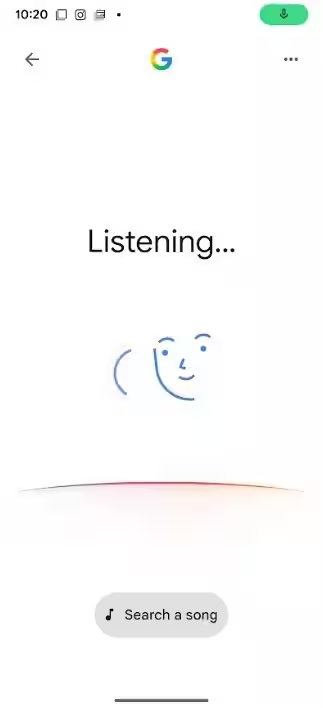
The redesigned voice search interface shows the Google logo at the top center of the page with a back button on the left and a three-dot menu icon on the right. Clicking on that icon will take you to the voice settings. There you can turn on voice results, so that you can read out your search results aloud. You can also choose one of four different voices to read the results (Cosmo, Neso, Terra or Cassini) and change the main language in which the voice search will communicate with you – there are many options available. The dark theme has been updated, too.
How to access voice search
Google Voice Search can be accessed by tapping the microphone icon inside the Google Search widget on the home screen, from the Pixel Launcher’s persistent search bar at the bottom of the display on Pixel phones, by opening the Google app and tapping the microphone icon in the search bar. If enabled, you can open a hands-free voice search by saying “Hey Google.”
If you use the search bar and the microphone icon to access voice search, as soon as you tap the icon, the same weird disembodied face will appear with the word “Listening” on top and a four-color arc under the face. Underneath the arc is a new larger “Search a song” button. Click it, and a song search interface opens up with a suggestion to “Play, Sing, Hum.” There’s a shortcut to your song search history in the top right corner.
Update availability
The new interface is rolling out with stable version 17.1 and beta 17.2 of Google’s Android app. It’s not available to everyone yet. The new UI appears on my Pixel 6 Pro with version 17.1 of Google’s stable app and the latest Android 16 QPR3 beta.